Sunday, 12 June 2016

Giving Custom Name to the Image in Oracle Virtual Box

Users can give the custom name for the image running in Oracle Virtual Box. This can be achieved by the following defined method

1. When we import the ova file in the virtual box, at that time, double click the name for the importing image in the configuration column and change it to your cutomized name.

2. If you imported it with the default name, then in the later stage, when the image is powered off, right click in the virtual box and click setting. In the setting , change the name field and hit enter.


Monday, 30 May 2016

PeopleTools DPK Installation- Important Commands

Oracle PeopleSoft provide the commands which are available for PeopleSoft Deployment Package.

DPK provides the flexibility to install domains separately on different physical and logical machines.

Following DPK commands could be execute in Windows Powershell and Unix/Linux boxes

DPK provide the option to specify default option also as

domain_type (the default is all) : domain_type all

1. For App Server domain

--env_type midtier --domain_type appserver

2. For App Batch Domain (for App Server & Process Scheduler on on one machine)

--env_type midtier --domain_type appbatch

3. For PIA Domain

--env_type midtier --domain_type pia

4. For a Process Scheduler Domain

--env_type midtier --domain_type prcs

5. This command setups a fulltier (database and midtier) PeopleSoft environment using the DPK zips from the directory /opt/psft/dpks.

--dpk_src_dir /opt/psft/dpks

7. This command deploys just the PS_HOME. It does not setup any PeopleSoft environment. Just installs PS_HOME and none of the other 3rd party components.

--env_type midtier --deploy_only --deploy_type tools_home

Sunday, 22 May 2016

Applying customizations for deployment ONLY through puppet failing with the error


After I created the psft_customizations.yaml and executed the command puppet apply site.pp --debug --trace under manifests, it was failing with the errors as below. I was intending to apply the deployment customization in the peoplesoft application and was looking to use the user profile for deployment as delivered default i.e, psadm1,psadm2,psadm3 and oracle2.

From the error message, I analysed that puppet script is unable to create the user profile folders in the home directory i.e,

/home/psadm1
/home/psadm2
/home/psadm3
/home/oracle2

Error: Could not set 'present' on ensure: No such file or directory - /home/psadm2/.profile at 59:/etc/puppet/modules/pt_profile/manifests/pt_system/users.pp
/usr/share/ruby/vendor_ruby/puppet/type/file.rb:812:in `initialize'
/usr/share/ruby/vendor_ruby/puppet/type/file.rb:812:in `open'


/usr/share/ruby/vendor_ruby/puppet/util/command_line.rb:146:in `run'
/usr/share/ruby/vendor_ruby/puppet/util/command_line.rb:92:in `execute'
/usr/bin/puppet:8:in `<main>'
Wrapped exception:
No such file or directory - /home/psadm2/.profile
/usr/s


Error: /Stage[main]/Pt_profile::Pt_system::Users/File[/home/psadm2/.profile]/ensure: change from absent to present failed: Could not set 'present' on ensure: No such file or directory - /home/psadm2/.profile at 59:/etc/puppet/modules/pt_profile/manifests/pt_system/users.pp
Notice: /Stage[main]/Pt_profile::Pt_system::Users/Exec[chage -d 0 psadm2]: Dependency File[/home/psadm2/.profile] has failures: true
Warning: /Stage[main]/Pt_profile::Pt_system::Users/Exec[chage -d 0 psadm2]: Skipping because of failed dependencies


Error: /Stage[main]/Pt_profile::Pt_system::Users/File[/home/psadm3/.profile]/ensure: change from absent to present failed: Could not set 'present' on ensure: No such file or directory - /home/psadm3/.profile at 59:/etc/puppet/modules/pt_profile/manifests/pt_system/users.pp
Notice: /Stage[main]/Pt_profile::Pt_system::Users/Exec[chage -d 0 psadm3]: Dependency File[/home/psadm3/.profile] has failures: true
Warning: /Stage[main]/Pt_profile::Pt_system::Users/Exec[chage -d 0 psadm3]: Skipping because of failed dependencies


Error: Could not set 'present' on ensure: No such file or directory - /home/oracle2/.profile at 59:/etc/puppet/modules/pt_profile/manifests/pt_system/users.pp
/usr/share/ruby/vendor_ruby/puppet/type/file.rb:812:in `initialize'


Error: Could not set 'present' on ensure: No such file or directory - /home/oracle2/.profile at 59:/etc/puppet/modules/pt_profile/manifests/pt_system/users.pp
/usr/share/ruby/vendor_ruby/puppet/type/file.rb:812:in `initialize'

Error: /Stage[main]/Pt_profile::Pt_system::Users/File[/home/oracle2/.profile]/ensure: change from absent to present failed: Could not set 'present' on ensure: No such file or directory - /home/oracle2/.profile at 59:/etc/puppet/modules/pt_profile/manifests/pt_system/users.pp
Notice: /Stage[main]/Pt_profile::Pt_system::Users/Exec[chage -d 0 oracle2]: Dependency File[/home/oracle2/.profile] has failures: true
Warning: /Stage[main]/Pt_profile::Pt_system::Users/Exec[chage -d 0 oracle2]: Skipping because of failed dependencies

Warning: /Stage[main]/Pt_profile::Pt_tools_deployment/Notify[Applying pt_profile::pt_tools_deployment]: Skipping because of failed dependencies

Warning: /Stage[main]/Pt_setup::Tools_deployment/File[/home/fs91dev/ps_home8.55.05]: Skipping because of failed dependencies


Warning: /Stage[main]/Pt_profile::Pt_psft_environment/Pt_setup::User_environment[oracle2_environment]/File[oracle2_environment]: Skipping because of failed dependencies


Warning: /Stage[main]/Pt_profile::Pt_psft_environment/Pt_setup::User_environment[psadm2_environment]/File[psadm2_environment]: Skipping because of failed dependencies


Solution

As a solution to the issue, I have created the user profile folders manually in the home directory using the root linux user(note that I am installing PeopleSoft PeopleTools using the root user). 
mkdir psadm1 psadm2 psadm3 oracle2

drwxr-xr-x.  2 root      root           6 May 23 15:16 psadm1
drwxr-xr-x.  2 root      root           6 May 23 15:16 psadm2
drwxr-xr-x.  2 root      root           6 May 23 15:16 psadm3
drwxr-xr-x.  2 root      root           6 May 23 15:16 oracle2

Once done, I navigated to /etc/puppet/manifests and executed the command 
 puppet apply site.pp --debug --trace

This deployed the customized components in the server.

Ensure to change the permission and owner post deploying the tools and components.

You can also delete the user folders created above manually once the deployment is completed.


Thursday, 19 May 2016

PSACCESSPROFILE Table in PT8.55

PSACCESSPROFILE 

In PT8.55 a new table PSACCESSPROFILE has been created with new longer fields. This new table PSACCESSPROFILE was replaced the table PSACCESSPRFL.

Structure/Column in PSACCESSPROFILE table

ColumnName
ENCRYPTED
STM_ACCESS_ID
STM_ACCESS_PART1
STM_ACCESS_PART2
STM_ACCESS_PSWD
STM_ENCRYPTION_VER
SYMBOLICID
VERSION

Saturday, 14 May 2016

PeopleTools client installation When Running SetupPTClient.bat is failing with the error as The application has failed to start because"..

Attempt to install the client by running SetupPTClient.bat for PT 8.55.01 client is failing with the error as

"The application has failed to start because its side-by-side configuration is incorrect. Please see the application event log or use the command-line sxstrace.exe tool for more detail"

Analyzing the issue revealed that this is happening because computer does not include the necessary Microsoft C++ runtime libraries which are required for installation of the client using the DPK.

As a solution for this

1. Uninstall all current all current Microsoft Visual C++ installations by going to Control Panel and with in the list of programs locate locate the Microsoft Visual C++ entries and uninstall all in a row.

2. Reinstall new Microsoft Visual C++ packages

You can get all the packages from the link below

https://www.microsoft.com/en-us/download/search.aspx?q=redistributable+package

Latest release date of the package

Visual C++ Redistributable Packages for Visual Studio 2013 is 30th Dec 2014.


You need to check all the packages available and click each of the following links in order to install all. Choose to Run the download to install each Microsoft Visual C++ Redistributable Package.

Microsoft Visual C++ 2005 Redistributable Package (x86): http://www.microsoft.com/en-us/download/details.aspx?id=3387
Microsoft Visual C++ 2005 Redistributable Package (x64): http://www.microsoft.com/en-us/download/details.aspx?id=21254
Microsoft Visual C++ 2008 Redistributable Package (x86): http://www.microsoft.com/en-us/download/details.aspx?id=29
Microsoft Visual C++ 2008 SP1 Redistributable Package (x86): http://www.microsoft.com/en-us/download/details.aspx?id=5582
Microsoft Visual C++ 2008 Redistributable Package (x64): http://www.microsoft.com/en-us/download/details.aspx?id=15336
Microsoft Visual C++ 2008 SP1 Redistributable Package (x64): http://www.microsoft.com/en-us/download/details.aspx?id=2092
Microsoft Visual C++ 2010 Redistributable Package (x86): http://www.microsoft.com/en-us/download/details.aspx?id=5555
Microsoft Visual C++ 2010 SP1 Redistributable Package (x86): http://www.microsoft.com/en-us/download/details.aspx?id=8328
Microsoft Visual C++ 2010 Redistributable Package (x64): http://www.microsoft.com/en-us/download/details.aspx?id=14632
Microsoft Visual C++ 2010 SP1 Redistributable Package (x64): http://www.microsoft.com/en-us/download/details.aspx?id=13523
Microsoft Visual C++ 2012 Redistributable Package (x86/x64/ARM): https://www.microsoft.com/en-us/download/details.aspx?id=30679
Microsoft Visual C++ 2013 Redistributable Package (x86/x64/ARM): https://www.microsoft.com/en-us/download/details.aspx?id=40784

Once every package has been downloaded and installed, restart Windows and run the cmd.exe as administrator and execute SetupPTClient.bat from the tools_client folder without any parameter.

How to Stop PeopleSoft image on Virtual Box

PeopleSoft Provided image on the Virtual Box can be stopped using many different options. These options can be used based on the strategy to administer the image.

First option is that you can go to the machine option and click on the ACPI shutdown. This will stop the services which are running on the virtual box and then shutdown the PeopleSoft Image.

One can also opt for the Machine >> Close and then select one from the three available options.

First Option in this case is -Save the Machine State- This will save the machine state as it and stop the image.

Second Option is - Send the Shutdown Signal- This will stop the services first and then shutdown the image. Similar to ACPI option as explained above.

and Third Option is - Power off the Machine- This is defined as the abrupt shutdown of the image. This option will stop the machine without stopping services which is as equivalent to KILL the running services.

Friday, 13 May 2016

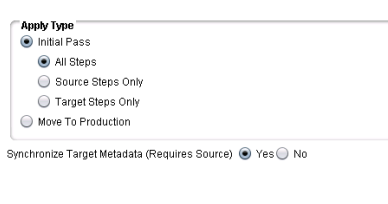
Synchronize Target Metadata:Option in Change Assistant

Ever wonder what is Synchronize Target Metadata which come as a option while applying change package through Change Assistant.

Synchronize Target Metadata appear as a option in Apply Type in the Task Steps>>Settings section of the Change Assistant.


Once you applied the change package to target instance,Change Assistant can automatically update the source PeopleSoft Image(which is your PUM image) with the details of patches applied to target instance.This will help you when applying any other patches on target in future.

If your organisation have the strategy for PUM source and if you want to synchronize target metadata with source then select ‘Yes’ otherwise select ‘No’.

If you select ‘Yes’, source i.e. PeopleSoft Image(PUM Source image) should be up and remain accessible to Change Assistant until CA job is finished.This is required for details to update in the PUM Source image from the target environment.